How to Embed Document Signing in Your App with an Iframe
A step-by-step guide to embedding SigPen's signing experience directly in your web app using an iframe, JWT tokens, and postMessage events.
Most e-signature APIs force your users to leave your app to sign documents. They click a link, get sent to a third-party site, and maybe (if you're lucky) find their way back.
Embedded signing keeps them in your UI. The signing experience loads inside an iframe on your page, and you get real-time events when they're done. No redirects, no context switching, no drop-off.
Here's how to set it up with SigPen.
What Embedded Signing Looks Like
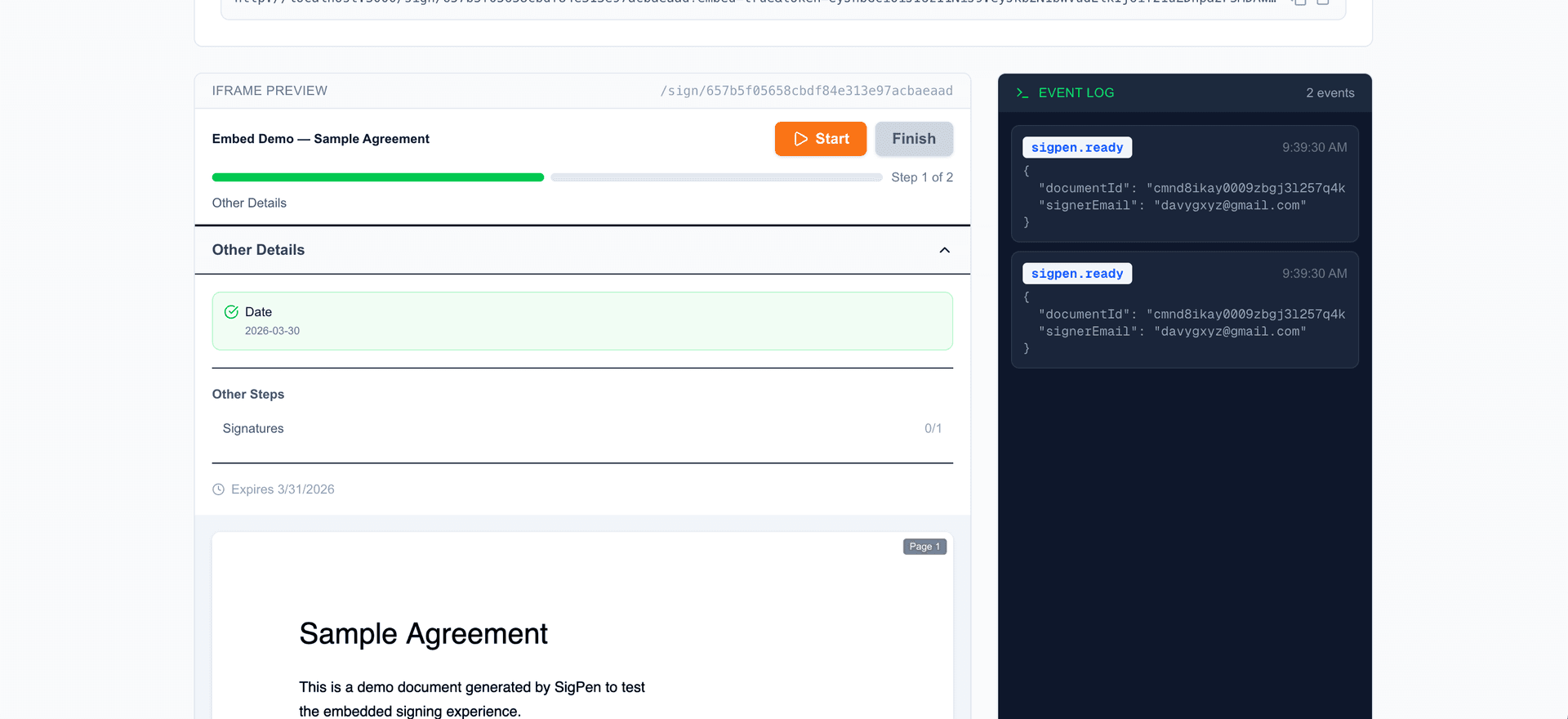
From your user's perspective, a signing panel appears inside your app. They see the document, fill in fields, draw their signature, and hit submit. The whole experience is branded and contained with no SigPen chrome, no header, no "powered by" footer.
From your code's perspective, you make one API call to get a signed URL, set it as an iframe's src, and listen for postMessage events. That's it.
Prerequisites
- A SigPen API key (free Developer account works)
- A document that's been uploaded and sent for signature via the API
- A web page where you want to embed the signing experience
If you haven't set up the basic API flow yet, start with How to Add Electronic Signatures to Your App via API and come back here.
Step 1: Upload and Send the Document
Before you can embed signing, you need a document with at least one signer. Here's the quick version:
// Upload
const uploadRes = await fetch('https://www.sigpen.com/api/v1/documents', {
  method: 'POST',
  headers: {
    'Authorization': 'Bearer sp_live_YOUR_KEY',
    'Content-Type': 'application/json',
  },
  body: JSON.stringify({
    file: base64EncodedPdf,
    file_name: 'agreement.pdf',
    title: 'Service Agreement',
  }),
});
const doc = await uploadRes.json();

// Send for signature
const sendRes = await fetch(`https://www.sigpen.com/api/v1/documents/${doc.id}/send`, {
  method: 'POST',
  headers: {
    'Authorization': 'Bearer sp_live_YOUR_KEY',
    'Content-Type': 'application/json',
  },
  body: JSON.stringify({
    signers: [{ email: 'customer@example.com', name: 'Alex Johnson' }],
  }),
});
const sent = await sendRes.json();
const signerId = sent.signers[0].id; // Save this!
The signer id in the response is what you'll use next. It's not the same as their email. It's the signing session ID.
Step 2: Generate the Embedded Signing URL
Call the embedded-sign-url endpoint with the signer's session ID:
const res = await fetch(
  `https://www.sigpen.com/api/v1/documents/${doc.id}/embedded-sign-url`,
  {
    method: 'POST',
    headers: {
      'Authorization': 'Bearer sp_live_YOUR_KEY',
      'Content-Type': 'application/json',
    },
    body: JSON.stringify({ signer_id: signerId }),
  }
);
const { sign_url, expires_at } = await res.json();
The response gives you two things:
sign_url- a full URL with an embedded JWT token, valid for 60 minutesexpires_at- when the URL stops working (ISO 8601 timestamp)
The JWT contains the document ID, signer info, and a mode flag that tells SigPen to render in embed mode (no header, no navigation, compact layout).
Step 3: Load It in an Iframe
<iframe
  id="signing-frame"
  src=""
  style="width: 100%; height: 700px; border: 1px solid #e2e8f0; border-radius: 8px;"
  sandbox="allow-same-origin allow-scripts allow-forms allow-popups"
></iframe>

<script>
  // Set the URL from your API call
  document.getElementById('signing-frame').src = signUrl;
</script>
The sandbox attribute is important. It restricts what the iframe can do while still allowing the signing flow to work. Don't add allow-top-navigation unless you want the iframe to be able to redirect your parent page.
For sizing, 700px height works well for most documents. The signing interface is responsive, so it adapts to whatever width you give it.
Step 4: Listen for Events
SigPen's signing interface fires postMessage events to the parent window. This is how you know when the signer is done:
window.addEventListener('message', (event) => {
  // Only handle messages from SigPen
  if (event.data?.source !== 'sigpen') return;

  switch (event.data.event) {
    case 'sigpen.ready':
      // The signing page has loaded and the PDF is visible
      console.log('Ready for:', event.data.signerEmail);
      // Good time to hide a loading spinner
      break;

    case 'sigpen.signed':
      // The signer completed their signature!
      console.log('Signed!', {
        documentId: event.data.documentId,
        signerEmail: event.data.signerEmail,
        signingSessionId: event.data.signingSessionId,
      });
      // Update your UI, close the modal, show a success message
      break;

    case 'sigpen.error':
      // Something went wrong
      console.error('Signing error:', event.data);
      break;
  }
});
Three events to handle:
| Event | When it fires | Data included |
|---|---|---|
sigpen.ready | PDF has loaded, signer can start | documentId, signerEmail |
sigpen.signed | Signer submitted their signature | documentId, signerEmail, signingSessionId |
sigpen.error | Something failed (expired token, network issue) | Error details |
The sigpen.signed event is your cue to close the iframe, show a confirmation, or move the user to the next step in your flow.
Putting It All Together
Here's a complete React component that handles the full embedded signing flow:
import { useState, useEffect, useCallback } from 'react';

function EmbeddedSigning({ documentId, signerId, apiKey }) {
  const [signUrl, setSignUrl] = useState(null);
  const [status, setStatus] = useState('loading'); // loading | ready | signed | error

  // Fetch the signing URL
  useEffect(() => {
    fetch(`/api/get-sign-url`, {
      method: 'POST',
      headers: { 'Content-Type': 'application/json' },
      body: JSON.stringify({ documentId, signerId }),
    })
      .then(res => res.json())
      .then(data => setSignUrl(data.sign_url))
      .catch(() => setStatus('error'));
  }, [documentId, signerId]);

  // Listen for postMessage events
  useEffect(() => {
    function handleMessage(event) {
      if (event.data?.source !== 'sigpen') return;
      if (event.data.event === 'sigpen.ready') setStatus('ready');
      if (event.data.event === 'sigpen.signed') setStatus('signed');
      if (event.data.event === 'sigpen.error') setStatus('error');
    }
    window.addEventListener('message', handleMessage);
    return () => window.removeEventListener('message', handleMessage);
  }, []);

  if (status === 'signed') {
    return (
      <div style={{ textAlign: 'center', padding: '2rem' }}>
        <h2>Document Signed!</h2>
        <p>Thank you. You'll receive a copy by email.</p>
      </div>
    );
  }

  return (
    <div>
      {status === 'loading' && <p>Loading signing experience...</p>}
      {signUrl && (
        <iframe
          src={signUrl}
          style={{
            width: '100%',
            height: '700px',
            border: '1px solid #e2e8f0',
            borderRadius: '8px',
          }}
          sandbox="allow-same-origin allow-scripts allow-forms allow-popups"
        />
      )}
    </div>
  );
}
Note that the API call to generate the signing URL should go through your own backend (the /api/get-sign-url proxy in this example). Never expose your API key in client-side code.
Common Patterns
Modal signing: Wrap the iframe in a modal or slide-out panel. When sigpen.signed fires, close the modal and refresh the document status in your app.
Multi-signer flows: Generate a new embedded URL for each signer when it's their turn. The first signer signs in the iframe, you get the sigpen.signed event, then generate a URL for the next signer when they're ready.
Expiry handling: The URL is valid for 60 minutes. If your user might leave the page and come back, generate a fresh URL when they return rather than caching the old one.
Try It Live
We built an interactive sandbox where you can generate a real signing session and test the full embedded flow in a live iframe with real-time event logging. No code needed.
For the full API reference with examples in cURL, JavaScript, Python, and PHP, see the API docs.
Getting Started
Embedded signing is available on all plans, including the free Developer tier. Sign up, grab an API key, and you can have signing embedded in your app in under an hour.
Further reading: Full API Integration Guide and the Embed Documentation.
Ready to simplify your document signing?
Start your 14-day free trial. No credit card required.